Most people open a text-to-speech tool and freeze: where do I even start?
This is a three-minute path to a usable voiceover. You need three things only: a script, a voice, and an export file.
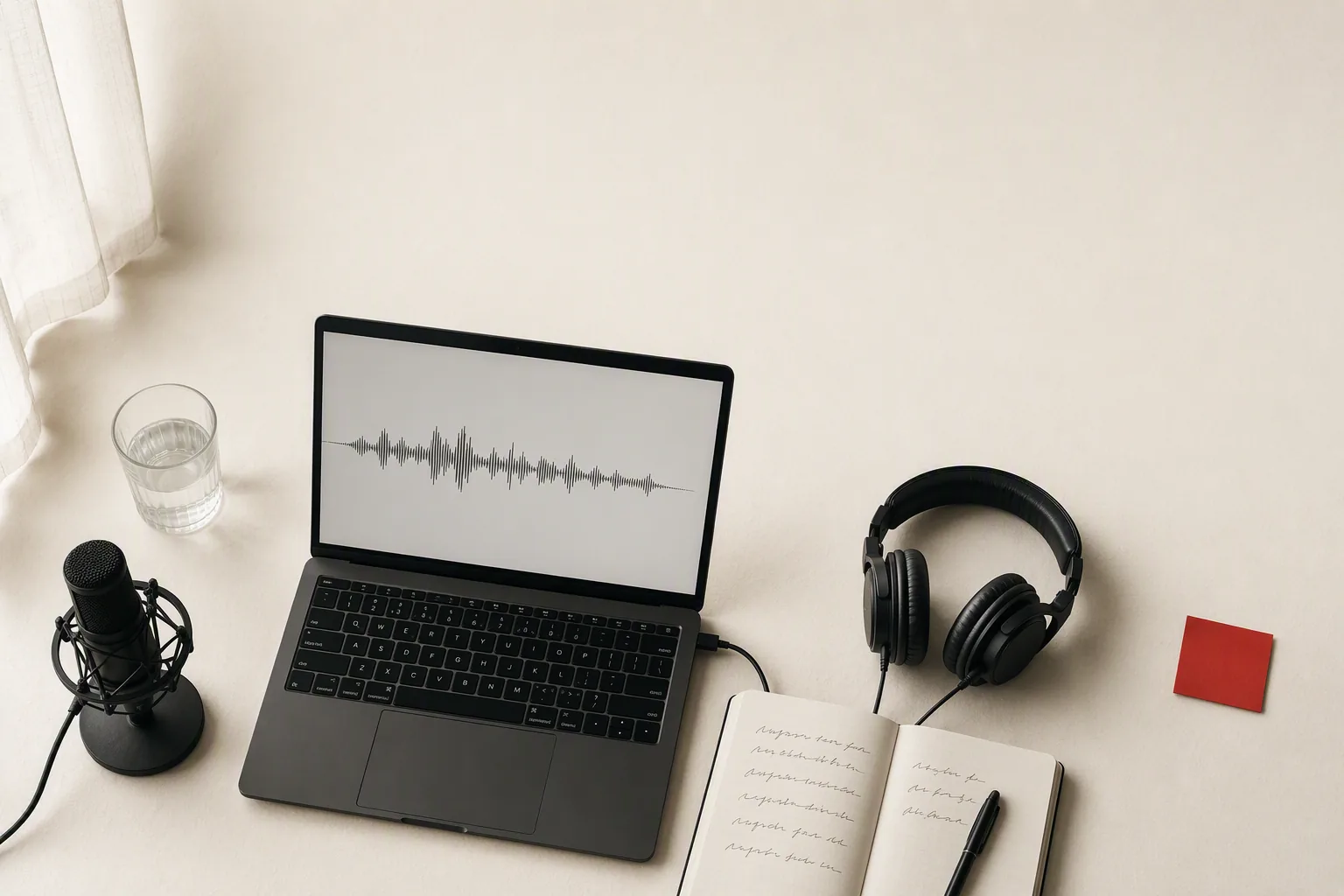
Short version: three steps
- Write a spoken script (not an essay)
- Pick a voice and set the rhythm (punctuation beats commands)
- Generate, listen, fix one line, export
Step 1: Make the copy sound spoken
Bad TTS is usually a script problem.
- Break long sentences. Anything over ~40 words with no commas will stumble.
- Write numbers the way you want them said.
- Decide how brands and acronyms are pronounced — in the text.
Tip: Read it out loud. If you trip, the machine will too.

Step 2: Pick a voice; control pace with punctuation
Choose a voice your audience would trust, not the most expensive one.
What actually creates performance:
- commas = breath
- periods = half-beat pause
- exclamation = energy
- emotion tags like (gentle) = whole-line filter
- audio tags like [pause] = rhythm
Telling the AI to “be happier” rarely works. Writing “honestly” or “here’s the problem” into the copy does.
Step 3: Generate → listen → fix one line
Do not rewrite everything at once.
- Generate a listenable take
- Mark the one worst line
- Change only that line’s punctuation or wording
- Generate again and keep the better take
Export WAV or MP3 into your editor. Same flow works for courses, audiobooks, and short-video voiceover.
When TTS wins vs a human
| Case | Pick |
|---|---|
| Tutorials, info, bulk narration, frequent rewrites | TTS |
| Brand films, heavy emotional acting | Human |
| Taiwan-market content | Try a Taiwanese Mandarin voice first |
Do one 30-second clip today
Then read:
Or try Soundwaver text to speech free.